TL;DR. WhatsMenu now takes bookings — not just orders. A restaurant can accept table reservations; a salon, barber, spa, clinic, or consultancy can accept appointments by service and by staff member. Customers book from a page you can share anywhere (with its own QR code and link), pick an open time slot, and get a confirmation. You manage everything from one panel — pending requests, the day's schedule per staff member, reminders, and no-shows — with automatic email and optional WhatsApp confirmations. It's part of your storefront, so the same place customers browse and order is now where they book.
If you've been taking bookings by phone tag, DMs, and a paper diary, this is the feature that moves them online without changing how you actually run your day.
What it is
Bookings in WhatsMenu handle two related jobs, and the platform picks the right one automatically:
- Table reservations — a customer requests a time and party size, you confirm, and the reservation lands on your board with the table logic handled for you. This is the classic restaurant "book a table for four at 7pm" flow.
- Appointments by service and staff — a customer picks a service (a haircut, a consultation, a treatment), optionally a specific team member, then a real open time slot based on that person's actual availability. This is the salon / barber / clinic / services flow.
You don't flip a mode switch. If you define bookable services, WhatsMenu switches to availability-aware time-slot booking. If you don't, it stays in simple request-a-time mode for tables. Businesses that only want table reservations never see the appointment machinery, and vice versa.
How customers book
Booking lives right on your storefront and on a dedicated page you can share:
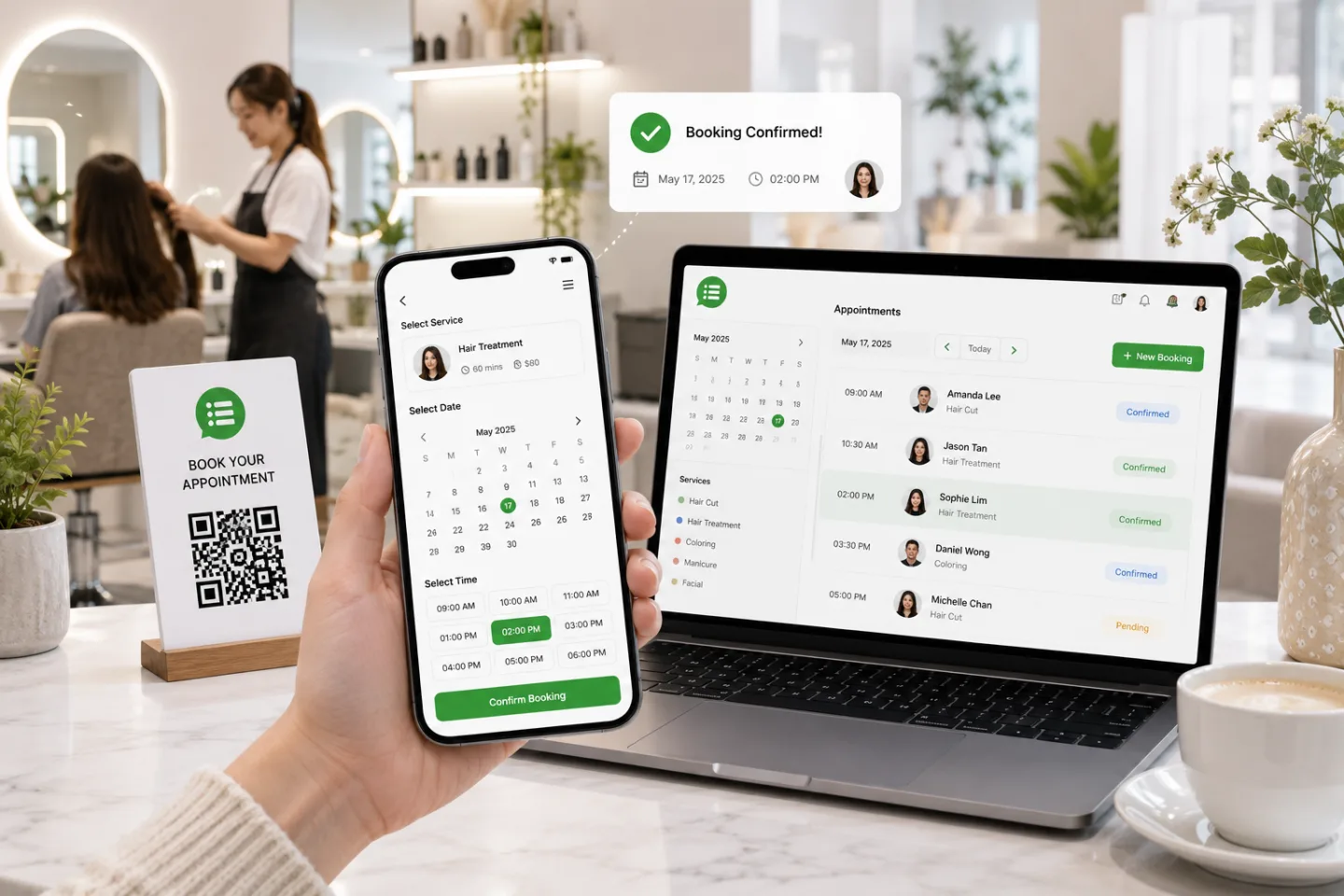
- A shareable booking page. Every account gets a clean, standalone booking page — no login, no clutter — with its own QR code and copy-link you'll find under Reservations → Share booking page. Print the QR on the counter, the shopfront, a table card, or a receipt; drop the link in your Instagram bio or WhatsApp status.
- Booking cards on your storefront. Your storefront shows "Book an appointment" (one card per service) and "Book by team member" (one card per staff member), so a customer can start from what they want or from who they want.
- An embeddable widget. Drop the booking widget onto an existing website if you already have one.
The customer flow is short: pick a service → optionally choose a team member (or "No preference") → pick a date → tap an open time slot → enter name, phone, and email → request the booking. For restaurants, they also choose party size. The request lands as pending, you confirm it, and the customer gets a confirmation with a "Manage booking" link that lets them cancel or reschedule themselves — no login, no back-and-forth.
How you manage it
Everything runs from the Reservations panel:
- Pending, Upcoming, and In-session tabs so you always know what needs confirming and what's happening now.
- A team day view — one column per staff member for the day, with working hours, time off, and every booking laid out on a timeline, plus an "Unassigned" lane for requests waiting to be routed. Filter the whole panel by team member.
- One-tap confirm — and if a customer asked for "No preference," WhatsMenu suggests the least-busy eligible staff member; you can reassign at confirmation time.
Staff and resources
For appointment businesses, you set this up once:
- Assign services to staff — who does what. A service can be done by a specific person, a set of people, or "anyone."
- Per-staff working hours — a weekly schedule per person, with support for split shifts (up to four time ranges a day). Staff without custom hours simply follow your business hours.
- Time off — block out whole days or specific hours per person, with a note.
- Capacity — tell WhatsMenu how many bookings can run at once (chairs, rooms, or parallel staff), and it keeps two customers from grabbing the same slot.
Time slots, exactly how you run them
- Slot start interval — offer start times every 5, 10, 15, 20, 30, or 60 minutes.
- Service duration and buffers — each service has its own length, plus optional prep/cleanup buffers before and after so back-to-back bookings don't collide.
- Booking window — set a minimum notice ("no bookings less than an hour out") and how far ahead customers can book, and choose whether to accept bookings outside your posted hours.
Reminders and no-shows
- Confirmations go out automatically by email (free, on by default). WhatsApp confirmations are available too — off by default since they use messaging credits, and you can decide per booking.
- One automatic reminder before each confirmed booking — set it to 1, 2, 3, 6, 12, 24, or 48 hours ahead.
- No-show handling — mark a booking as a no-show in one tap (and restore it if you were wrong). Optionally, WhatsMenu can auto-flag missed bookings after a grace period you choose. A quiet badge flags customers who've no-showed repeatedly, so your team can ask for a little more certainty before holding the slot.
Who it's for
Bookings are multi-industry by design — the same engine covers very different businesses:
- Restaurants and cafés — table reservations with party size, so the floor is planned before service.
- Salons, barbers, spas, nail bars — appointments by service and by stylist, with each chair on its own calendar.
- Clinics, dentists, therapists, consultants — appointment slots that respect each practitioner's real hours and time off.
- Services and trades — anyone who sells time: tutors, groomers, repair drop-offs, studios, coaches.
If your business sells a slot in someone's day, this fits.
What it does not do (yet)
Being straight about the edges:
- No deposits or prepayment at booking yet. Bookings confirm without taking a payment up front. If a booking should also be a paid order, your customers can still check out through your normal storefront.
- Day-view scheduling, not a full calendar suite. You get a per-day team view; drag-to-reschedule on a week grid isn't part of this release.
- One reminder per booking. It's a single, well-timed nudge, not a multi-step reminder sequence.
These are deliberate v1 boundaries — the goal was to get real bookings off the phone and onto your storefront cleanly, not to ship a heavyweight scheduling app.
Frequently asked questions
Do my customers need an account or an app to book?
No. The booking page is a normal web page — they tap a link or scan a QR, pick a time, and enter their name and number. Managing or rescheduling a booking works from a link in their confirmation, also with no login.
Is this only for restaurants?
No. Restaurants use it for table reservations; salons, clinics, and service businesses use it for appointments by staff member. The platform adapts based on whether you define bookable services.
How does it avoid double-booking?
Slots are generated from your real availability — staff hours, time off, service duration, buffers, and how many bookings can run at once. When two people try for the last slot at the same instant, only one gets it; the other sees that it was just taken.
Can customers choose a specific staff member?
Yes, when a service is set up to be performed by specific people. Customers pick a team member or leave it as "No preference," and WhatsMenu assigns the least-busy eligible person. You can always reassign when you confirm.
Do customers get reminders?
Yes — one automatic reminder before the booking, at a lead time you choose (from 1 hour up to 48 hours). Confirmations go out by email automatically, with optional WhatsApp.
What happens with no-shows?
Mark them in one tap, or have WhatsMenu auto-flag missed bookings after a grace period. Customers who repeatedly don't show up get a discreet badge so your team can plan around it.
Can I still take walk-ins and phone bookings?
Yes. You can add bookings yourself from the panel at any time — those bypass the online availability rules so you can squeeze in a walk-in. The availability checks only apply to customers booking online.
Bottom line
Bookings turn WhatsMenu from a place customers order into a place they also book — a table tonight, a haircut Saturday, a consultation next week — on your own storefront, with the scheduling, reminders, and no-show handling done for you. Your calendar fills itself while you work.
Get started at whatsmenu.page/new, or if you're already on WhatsMenu, turn on Reservations from Settings and share your booking page. New to the platform? Start with What Is WhatsMenu?